

Published on April 16, 2026
10 min to read
How to Recover Deleted Messages on Instagram: 4 Ways

Summarize with AI


Table of contents
Summarize with AI

ChatGPT

Claude

Perplexity
Share

Vista Social

X (Twitter)


You’re going about your day when a ping on Slack from your support team tells you they can’t find a message on Instagram from a customer who had some valid concerns about your product.
Surely it’s just a glitch, right? You tell them to refresh the app or log out and back in, only to get a reply two minutes later saying it’s been accidentally deleted. Sound familiar?
I can practically feel your heartbeat from here because of the existential dread you experienced the first time this happened, and if it hasn’t happened to you yet, it will, which is exactly why this guide exists.
Before you begin to spiral, remember that Instagram has no native way to restore deleted direct messages, and the “Recently Deleted” folder covers posts, Reels, and Stories only per Instagram’s own documentation.
But depending on how quickly you act and what device the account is managed on, a few methods may recover what was lost. This guide walks you through all of them with verified steps and honest success rates so you can stop panic-googling and start fixing them.
Table of contents
4 ways to recover deleted messages on Instagram
Before you start working through individual steps, use this table to pick the right starting point. The correct answer depends on the device, how recently the message was deleted, and what relationship you have with the contact on the other side.
| Method | Works on | Best if… | Wait time | Realistic success rate |
| Method 1: Contact the other person | Any device | Professional relationships make it possible | Instant | High: They still have the thread |
| Method 2: Android notification history | Android 11+ only | History was on before deletion | Instant | Medium: Text previews only |
| Method 3: Meta Accounts Center export | iPhone + Android | Messages were deleted very recently | 24 to 72 hrs | Low: Deleted DMs rarely appear |
| Method 4: Third-party recovery app | Mainly Android | Everything else has failed | 15+ minutes | Varies by device activity |
Method 1: Contact the other person directly
When a message gets deleted, it only disappears from your inbox. The other person still has the full thread on their side, unless they’ve deleted it too.
For SMMs, this usually means asking the customer, client contact, or the person who sent the original inquiry to screenshot or forward the relevant messages.
In professional situations, frame it as a technical issue on your end rather than a team mistake. “We’re experiencing a sync issue and appear to have lost our side of the thread” goes down a lot smoother than “someone on our team accidentally deleted your message.”
Most contacts will send a screenshot without hesitation, especially for business conversations.
Method 2: Check Android notification history
Android 11 and newer devices log incoming notifications automatically, including Instagram message previews.
If the account is managed on an Android device and notification history was turned on before the message arrived, the preview text may still be sitting in the notification log. This is the fastest technical recovery method and works without any kind of backup or data export.
Step 1: Open Settings on the Android device used to manage the Instagram account.
Step 2: Tap “Notifications.”
Step 3: Find “Notification history.” On Samsung, this is under “Advanced settings.” On Pixel and stock Android, it’s directly in the Notifications menu.
Step 4: If the toggle is off, turn it on. It’s important to note that it will only capture notifications from this point forward.
Step 5: Scroll through and filter for Instagram. You’ll find timestamped message previews, including messages deleted from the app after the notification arrived.
Method 3: Request a data export through Meta Accounts Center
Instagram’s official data export includes message history, and very recently deleted messages that are still on Meta’s servers within their 90-day deletion window may appear in the file. In practice, deleted DMs frequently don’t show up at all, so treat this as a fallback rather than a primary plan.
It takes a few minutes to request, costs nothing, and the navigation path changed in 2026. It now runs through Accounts Center, not the old “Your activity” menu.
Step 1: Log into the Instagram app
Open the Instagram app and log into your brand or client account. Then tap the Profile icon at the bottom right. Tap the menu icon at the top right, then select Accounts Center.
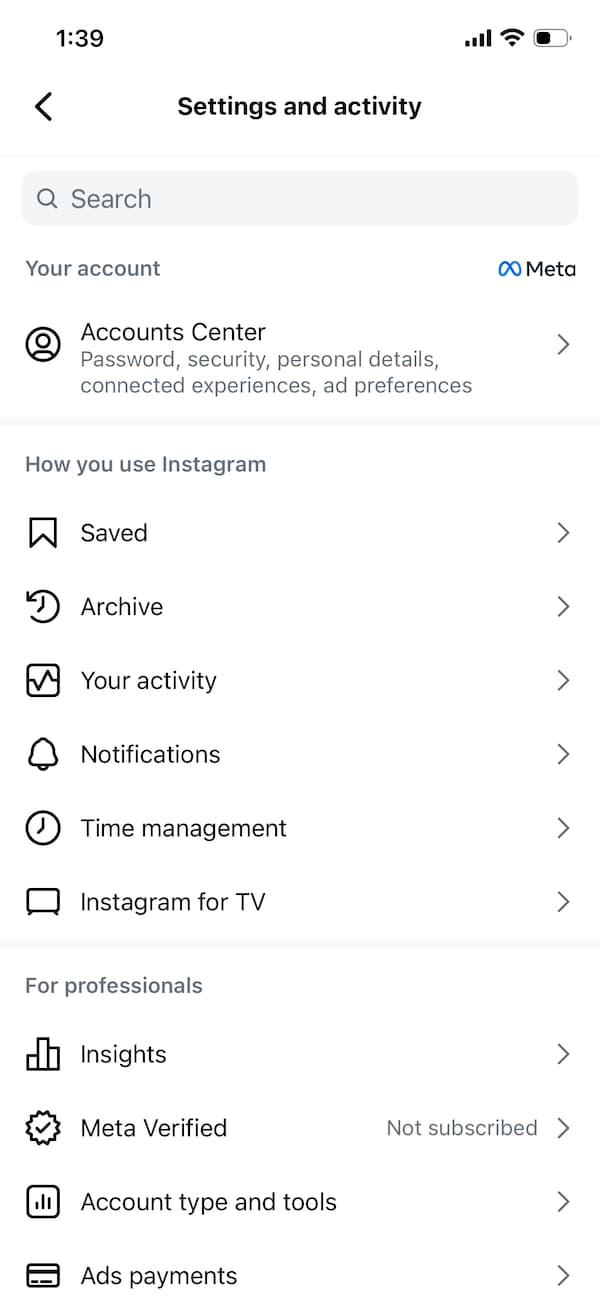
If you haven’t logged into the Accounts Center from this area before, you may need to input your login information or confirm that you want to open this dashboard.
Step 2: Navigate to the user activity section
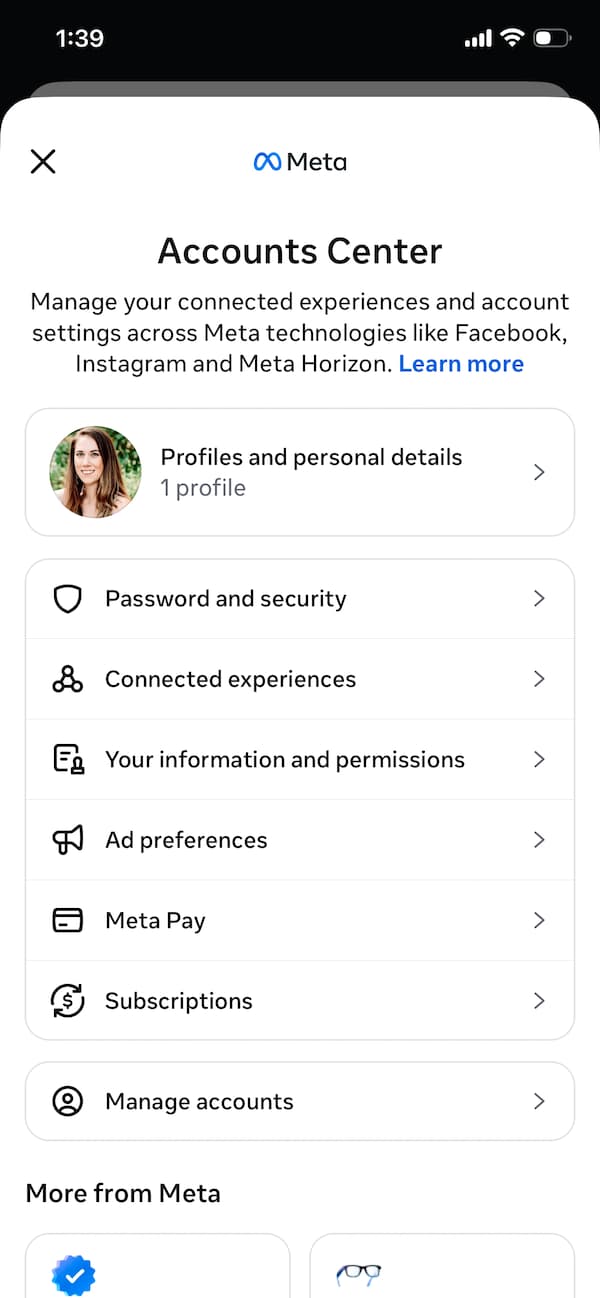
From the Accounts Center, tap Your Information and permissions.
Step 3: Create Instagram data files
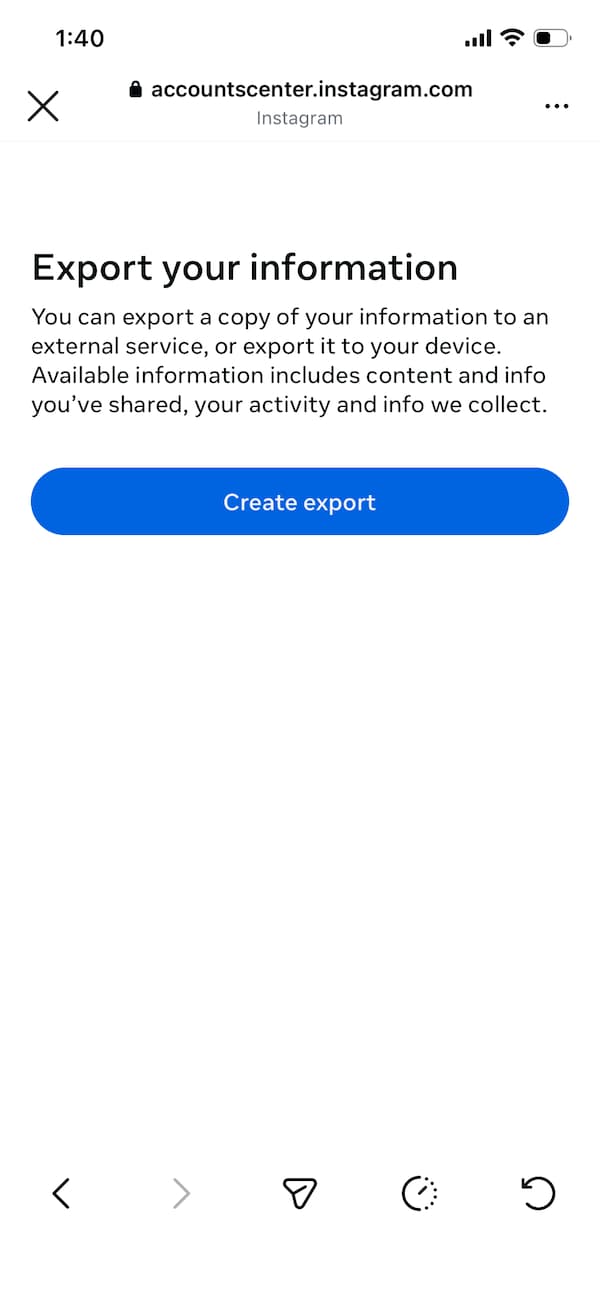
After you open Your information and permissions, tap Export your information.
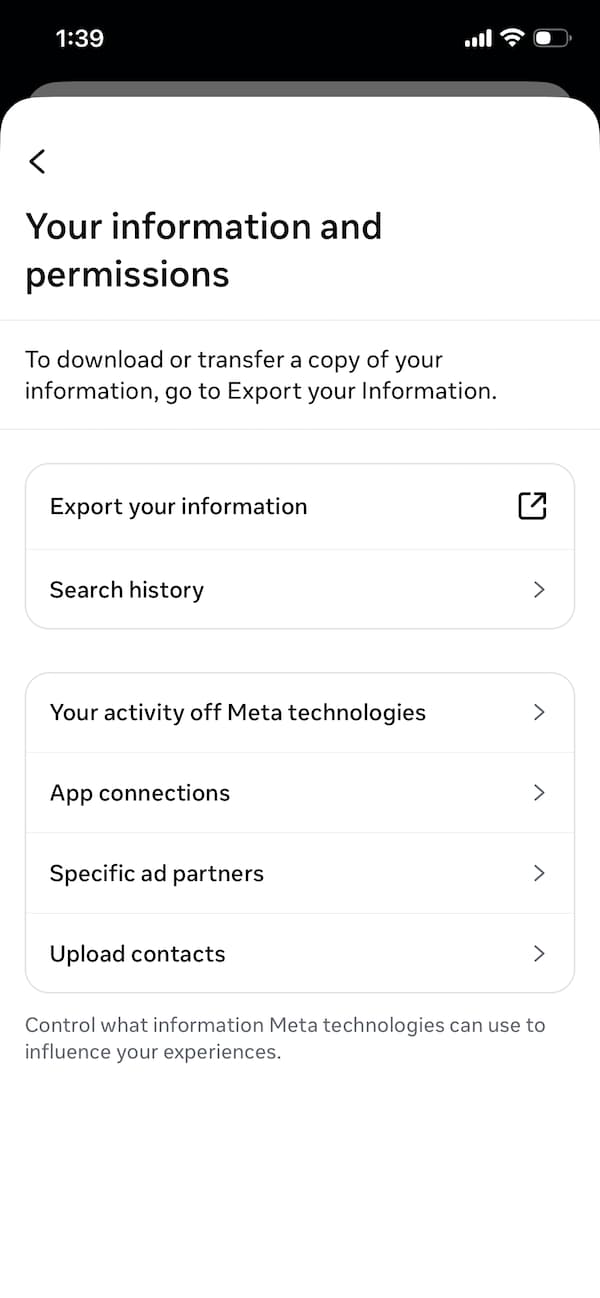
Tap Create export.
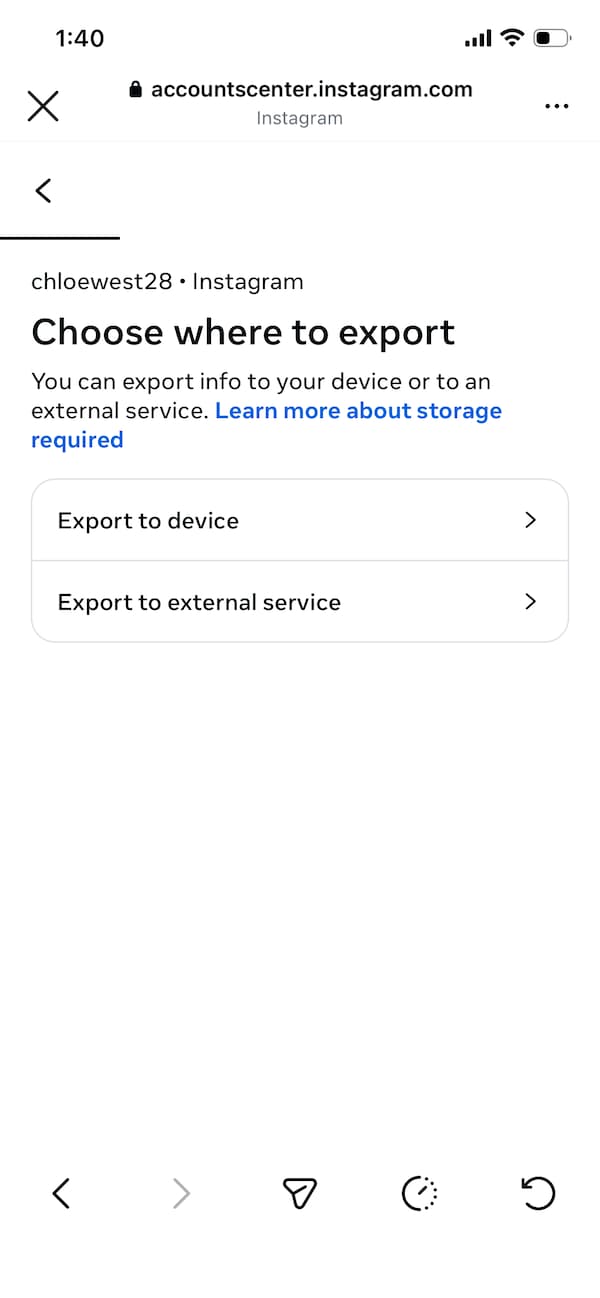
Pick the place where you want the file saved by selecting Device or External device.
Confirm the export, then scroll down to tap Start export.
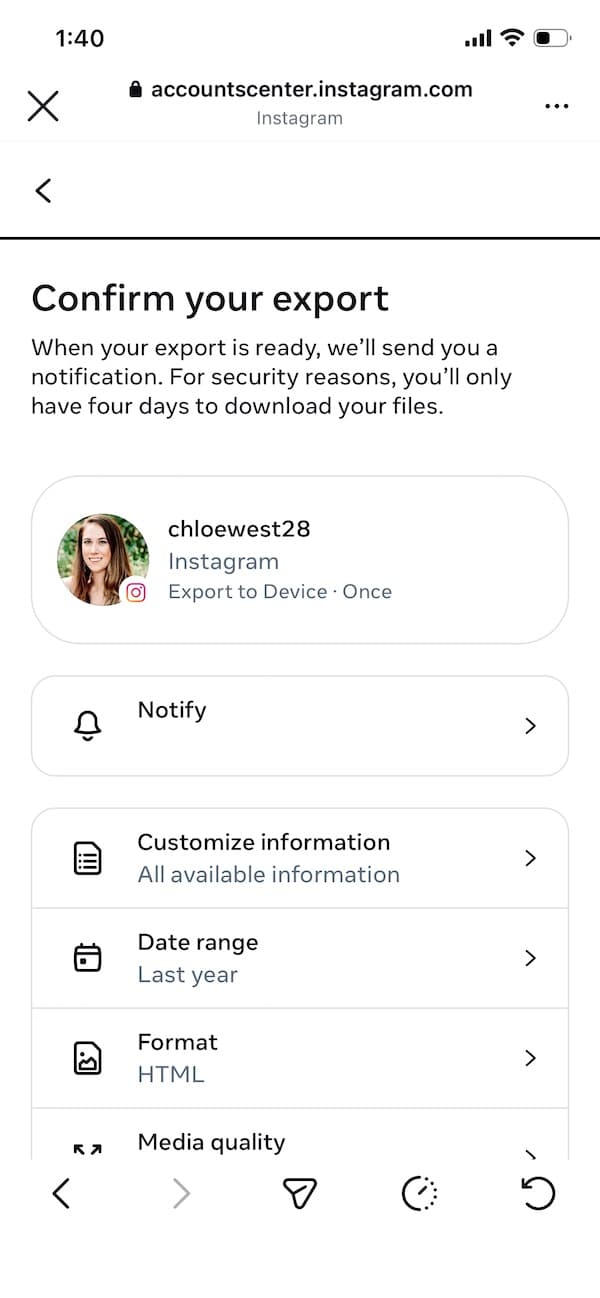
You’ll also find the downloaded file includes the images tied to your activity, which can be helpful when you’re putting content together.
Step 4: Download the data
Once the file is ready, Instagram sends the download link to the email connected to the account. You can expect to receive this download within 24-72 hours, so this isn’t exactly the most instantaneous resolution.
You also need to keep in mind that the link expires after four days. If that happens, you need to create a fresh export. You’ll need to request another download if you miss that window. You can follow the same steps on Instagram Web since the export runs through Accounts Center.
Method 4: Use a third-party recovery app
Data recovery apps scan a device’s local cache for fragments of files that have been marked as deleted but not yet overwritten. For agencies managing client accounts on shared or agency-owned Android devices, this is worth knowing about as a last option.
Put the device on airplane mode immediately. Every photo taken, app opened, or update downloaded increases the risk of permanently overwriting the fragments these tools are trying to find. Before installing anything:
- Only use apps from the official App Store or Google Play with a large number of recent, verified reviews
- Never enter Instagram login credentials into a third-party recovery tool
- Check what permissions the app requests before installing. Anything beyond local storage access is a red flag
- Look for coverage in tech publications, not just app store ratings, before trusting a tool with a client’s device
Can you recover Instagram Vanish Mode messages?
No. Vanish mode messages aren’t stored on Meta’s servers and disappear when the chat closes. They won’t show up in any data export, notification log, or recovery app.
For SMMs managing client accounts, avoid using Vanish Mode for any professional conversations. If something needs to be on record later, it has no business being in vanish mode.
Common scenarios that lead to deleted messages on Instagram
Before you try to recover anything, it helps to understand why messages disappear in the first place.
Instagram messages can disappear for several reasons, and the situations that lead to it tend to follow familiar patterns.
Accidental deletions
Accidents happen when you or your clients delete conversations without meaning to, only to realize later that the messages were important. It can be tricky to navigate Instagram Messages, especially on smaller screens. That’s usually when fingers slip and messages disappear before you even realize what happened.
Cleaning of messages
It’s also easy to delete messages by mistake when you’re cleaning out your Instagram inboxes. Just double check before clearing things out so you don’t delete conversations your clients still need.
Intentionally deleting and immediately regretting
Sometimes we’ll delete messages in the heat of the moment, then wish we hadn’t. The good news is there are plenty of ways to get those messages back.
Content violations
Messages that violate Community Guidelines can get flagged, which may lead to removal. If a DM gets reported for breaking Instagram’s rules, the platform can remove it.
Spam attacks
No one likes a spammer, especially in their Instagram inboxes. If someone keeps sending you unwanted messages, Instagram’s spam filters may step in and remove them. Understanding when to use Instagram restrict vs. block can also help you control who reaches your inbox in situations like this.
Account deletion
If your accounts get deleted without a backup, those messages usually can’t be recovered.
Temporary glitches
Like many social media platforms, Instagram isn’t perfect. Temporary glitches can also cause your DMs to disappear for a bit. Instagram messages that vanish during a glitch usually return once the issue is fixed.
Best practices for managing Instagram DMs
Recovery is the wrong place to be. The goal is building a workflow where a deleted message is never a crisis because the important information was captured before anyone had a chance to lose it.
These practices are specific to managing Instagram at a professional level in 2026.
Set role-based permissions
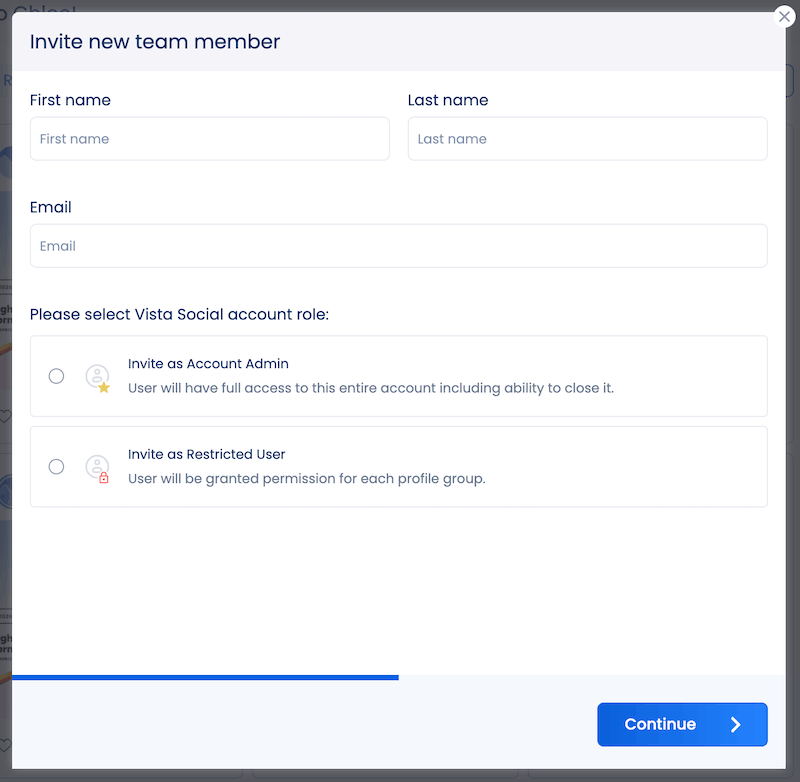
If multiple team members or contractors access the same Instagram account, Vista Social’s role-based permissions give you control over who can access what.
You can assign users “Manage” access (full inbox handling, including replying), “View” access (read-only), or no access at all, and you can scope this per client profile group so your team only sees the accounts they’re responsible for.
It’s worth knowing that Vista Social, like all third-party tools, cannot delete Instagram DMs, since Meta’s API doesn’t allow it. So the risk you’re protecting against isn’t a team member deleting through Vista Social but someone deleting directly inside the Instagram app.
Run your whole team from a unified inbox
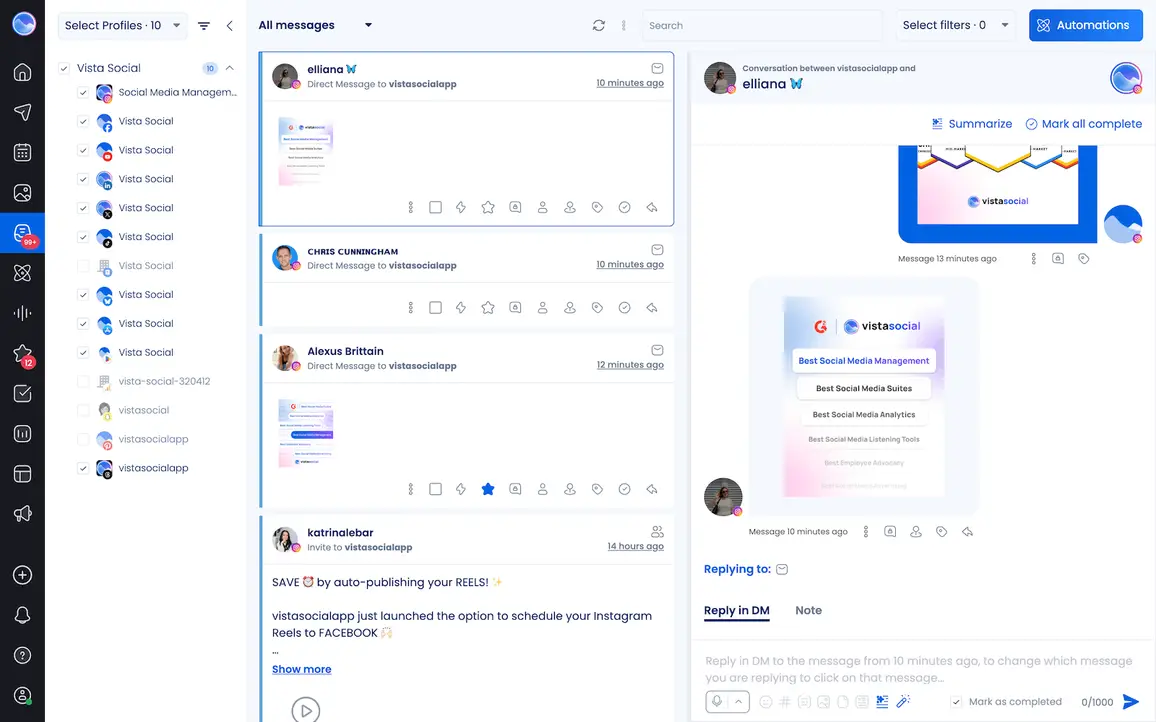
The most common cause of accidental deletions is inbox chaos. Multiple team members managing the same account from different apps, different tabs, and different login sessions.
Vista Social’s unified social inbox consolidates every Instagram DM, comment, and message request from all connected profiles into one dashboard. When the whole team works from the same place, messages get seen, assigned, and actioned properly instead of disappearing between platform switches.
Use the AI Assistant
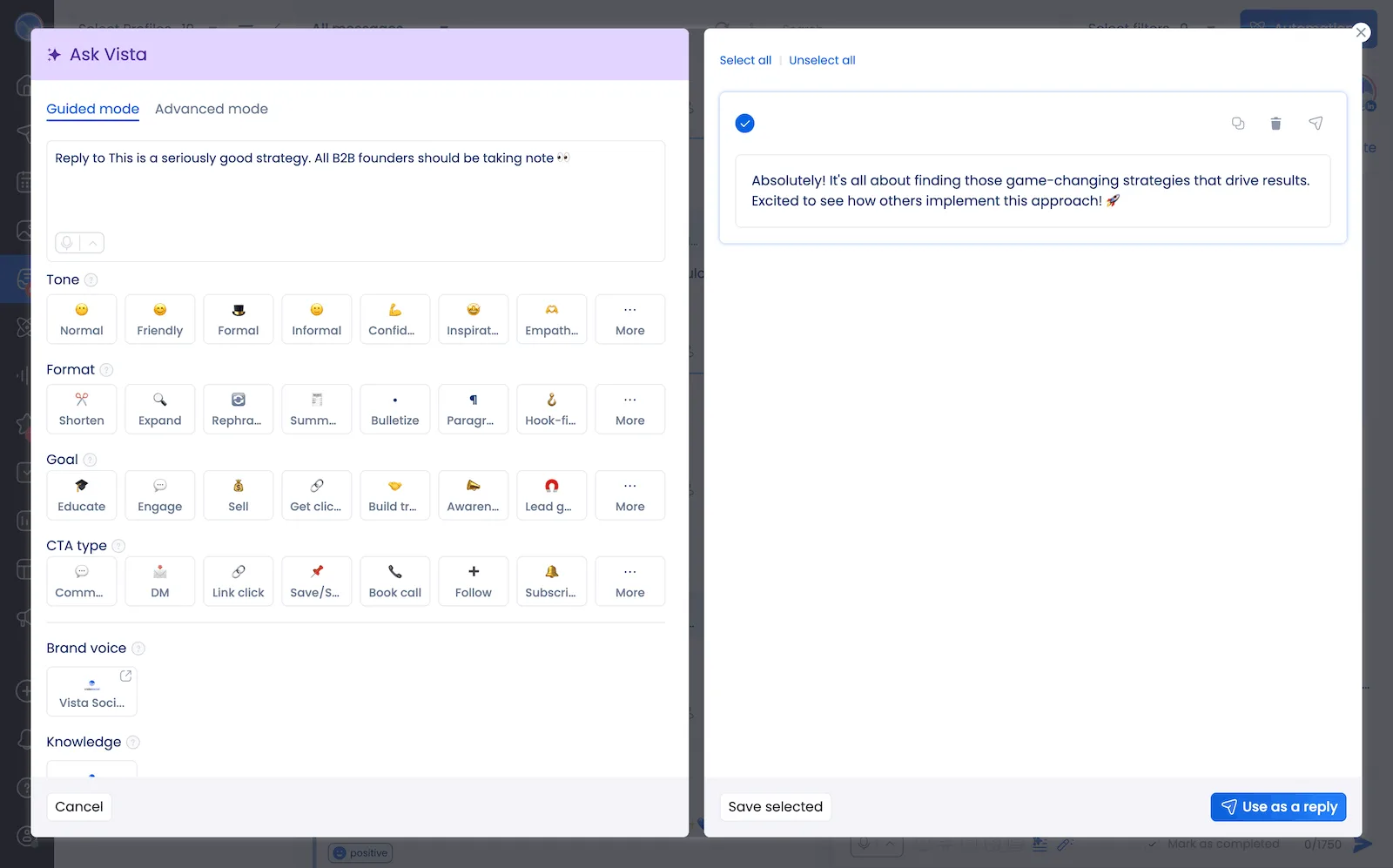
Vista Social’s AI Assistant helps your team respond faster without sounding like a bot. For DM automations, you can write a custom AI prompt that defines your brand voice and response style so every automated reply sounds like it came from your team, not a template.
For manual inbox replies, the AI Assistant generates on-brand responses using your preferred tone and format settings, which is especially useful during high-volume periods when speed matters.
Use the social CRM to document contact history
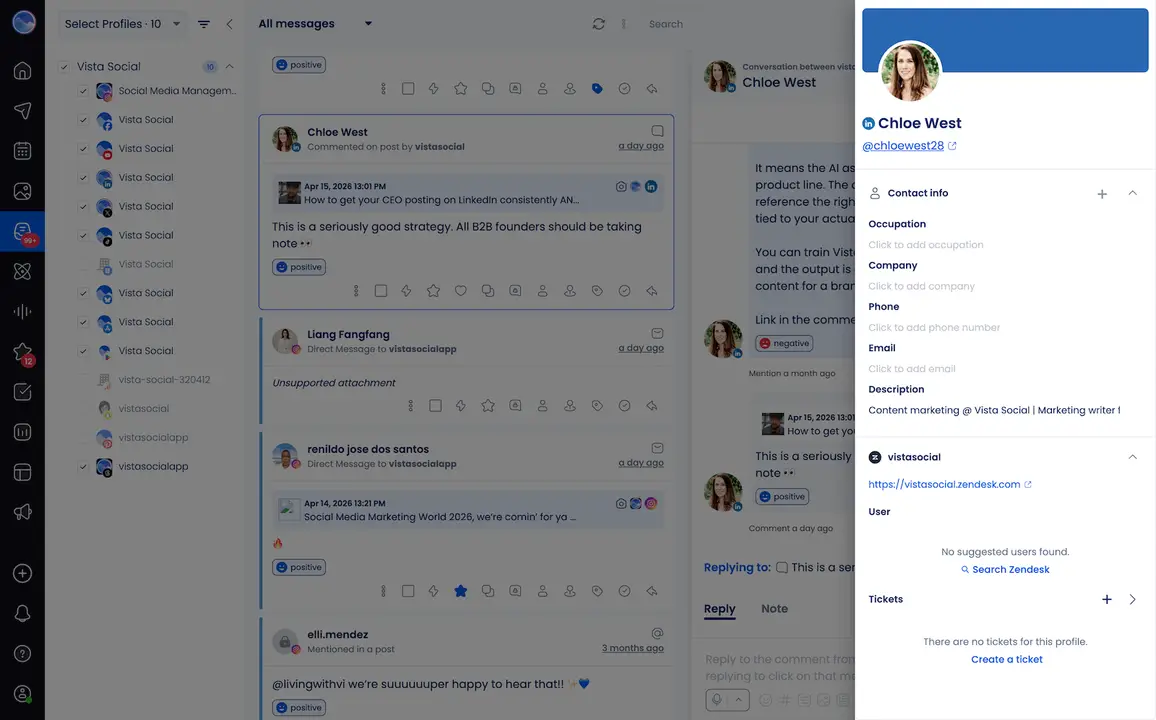
Vista Social includes social CRM capabilities in the inbox that let you save contact information and add notes about the people engaging with your clients on social media. Combined with internal notes, task assignment, and message labeling, your team can maintain important context about leads and customers while conversations are still active.
If a thread gets deleted from Instagram, it disappears from Vista Social’s inbox too since the platform syncs with Instagram’s data, so capturing the important details in notes while you have access is the habit that protects you.
Archive instead of delete
Instagram lets you archive a conversation rather than delete it, keeping it retrievable and searchable. Make this a team operating standard. Archive to clear the inbox; never delete. It takes one line in your social media SOP to prevent a disaster.
Your Instagram DM checklist for 2026
If you’re going to take one thing from this guide and do it today, make it this. Run through the list, check off what’s already in place, and fix what isn’t before the next incident happens.
- Set inbox permissions now: Anyone with access to a client’s Instagram account should have a defined access level.
- Turn on Android notification history: Go to “Settings,” “Notifications,” and “Notification History,” and toggle it on. Do this on every Android device used to manage client accounts.
- Schedule a monthly data export. Block 10 minutes on the first of each month to request an account export from Meta. Add it to your account maintenance checklist alongside analytics pulls.
- Write “archive, don’t delete” into your team SOP: Archiving keeps threads retrievable and searchable
- Set up at least one DM automation flow with data collection: Even a basic lead capture sequence means the information lives in your system independently
- Add internal notes: If a DM contains a decision, an approval, or customer context worth keeping, note it before the thread becomes a risk
- Check Message Requests before assuming deletion: Instagram routes messages from unfamiliar accounts there instead of the main inbox.
Stop recovering deleted Instagram messages
A deleted DM is always a systems gap before it’s a human mistake, and the fix is simpler than the panic that follows it. Archive instead of delete, run the whole team from one inbox, document contact details and decisions, and get a DM automation flow capturing lead data before any thread ever becomes a risk. Those four habits turn a recurring fire drill into a non-event.
Vista Social gives you the inbox, the automation flows, and the team management tools to make that system real. If your current setup has you recovering messages instead of preventing the loss, it’s time to change the setup. Try Vista Social free and take control of your Instagram inbox today.
Recovering deleted Instagram messages FAQs
Can you recover deleted Instagram DMs?
Sometimes. Contacting the other person is the fastest and most reliable option since the message still exists on their side of the conversation. Android devices with notification history enabled may have preview text. A Meta Accounts Center data export is worth trying, but deleted messages frequently don’t appear in it. After 90 days from deletion, recovery through any official method becomes very unlikely.
Does Instagram’s Recently Deleted folder work for DMs?
Instagram’s Recently Deleted folder only covers posts, Reels, and Stories deleted within the past 30 days. It does not apply to direct messages, so searching there for a deleted DM won’t find anything.
Do Instagram and Facebook Messenger still sync messages?
No. Meta discontinued cross-app messaging between Instagram Direct and Facebook Messenger in December 2023. The two inboxes are no longer synchronized, so checking Messenger won’t surface deleted Instagram messages.
Can you unsend a message instead of deleting it?
Yes. Tap and hold any sent message and select “Unsend.” This removes it from both sides of the conversation. If the recipient already saw the notification or opened the chat before you unsent it, they know the message existed.
Can vanish mode messages be recovered?
No. Vanish mode messages are not stored on Meta’s servers at all. They disappear when the chat closes and cannot be recovered through any method, including data exports, notification history, or third-party apps. For any professional conversation that needs to be on record, use standard DMs.
Try Vista Social for free
A social media management platform that actually helps you grow with easy-to-use content planning, scheduling, engagement and analytics tools.
Get Started NowAbout the Author

Content Writer
Orion loves to write content that refuses to be boring. As part of Vista Social, he helps brands, creators, and agencies stop doom scrolling and start winning with social media. When he's not in front of a keyboard, he's watching films in IMAX with his wife, dissecting football tactics (the European kind), and getting lost in a good book.
Loading related tools...

The most complete social media management platform for teams who demand more.






Tools
PublishingAnalyticsEngagementIntegrations
FacebookInstagramLinkedInRedditSnapchatThreadsTikTokX (Twitter)YouTubeMCPVista Page (link-in-bio)All IntegrationsCopyright © 2026 Vista Social LLC. All Rights Reserved.